
Claude Code Modes
Claude Code has four modes, cycled via Shift+Tab. The current mode is always shown in the status bar.
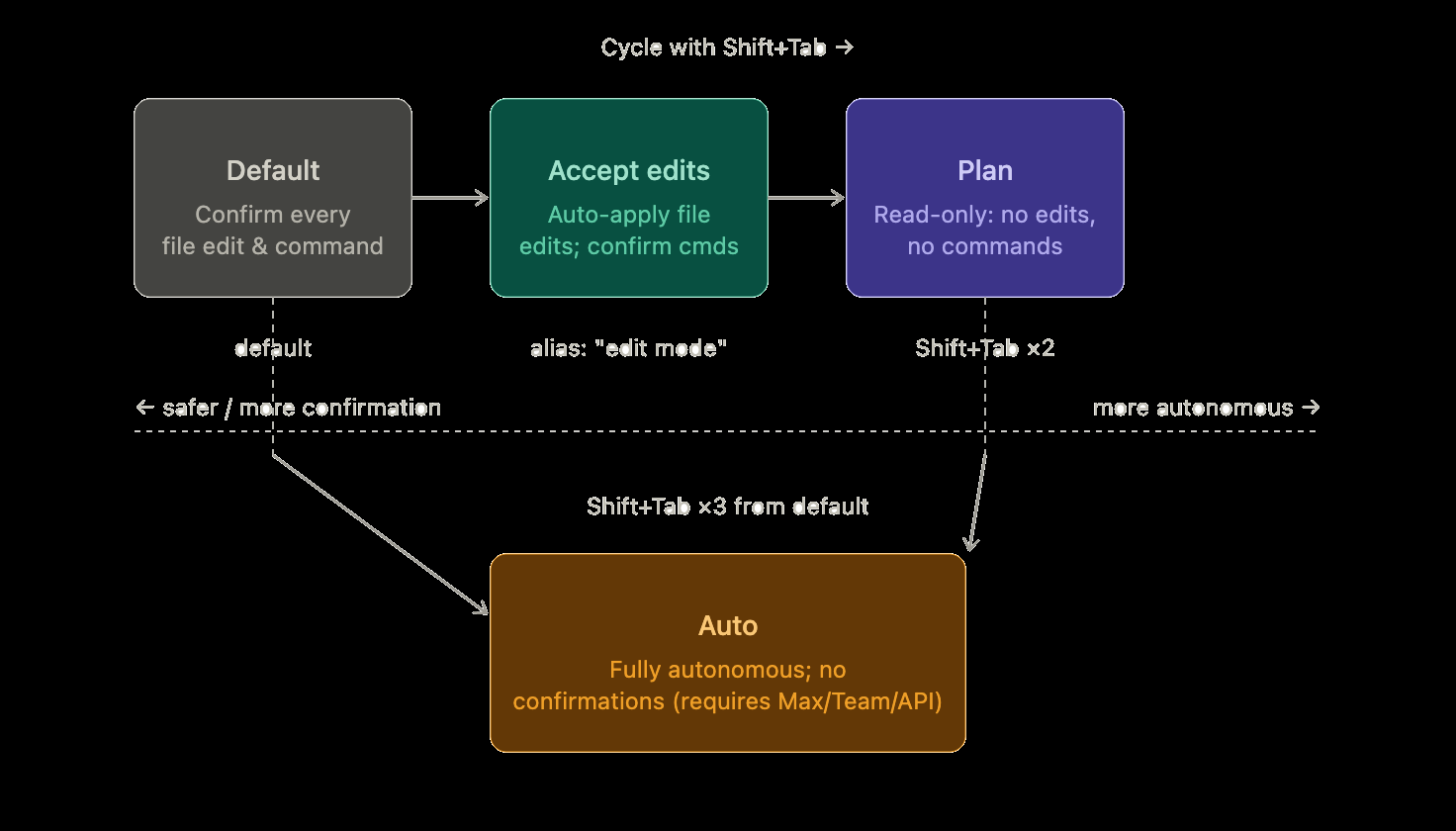
The four modes
Default — Every file edit and shell command requires your explicit confirmation before it runs. This is the safest mode and the starting point for new sessions.
Accept edits (commonly called "edit mode") — File edits are applied automatically without prompting, but shell commands still require confirmation. Good for iterating quickly when you trust the scope of the task.
Plan — Claude enters a read-only investigation phase: it can read files and search the codebase, but cannot write files, run commands, or make any changes. It produces a structured plan saved to ~/.claude/plans/. You can edit the plan directly with Ctrl+G before execution. This is where the "Explore Subagent" (a Haiku-powered sub-agent) spins up to index your codebase efficiently while preserving the main context window.
Auto — Fully autonomous execution with no per-action confirmations. Claude proceeds through the entire task independently. This requires a Max, Team, Enterprise, or API plan (not available on Pro) and must be admin-enabled on Team/Enterprise.
Switching modes
- Cycle through:
Shift+Tab— rotatesdefault → acceptEdits → plan → auto - Mid-session toggle:
/planslash command (v2.1.0+) to jump directly to Plan mode - Set a default:
claudeCode.initialPermissionModein VS Code settings - CLI flag:
--dangerously-skip-permissions(headless/CI use cases)
Recommended workflow
The workflow Boris Cherny (Claude Code's creator) uses: start in Plan mode, iterate on the plan until it's right, then switch to Accept edits or Auto to execute. This gives you a single high-level review gate rather than approving actions one at a time mid-execution — especially valuable for complex features, large multi-file refactors, or anything involving security (auth, payments, etc.).